Change file mode
It could be that some of the scripts we created are not working, not because we made a mistake, but because we didn't enable execution for the file we created. We can change that with chmod command.
When we use ls -l command, we can see various information related to
file permission:
The first column represents different access modes, i.e., the permission
associated with a file or a directory (e.g. drwxrwxrwx).
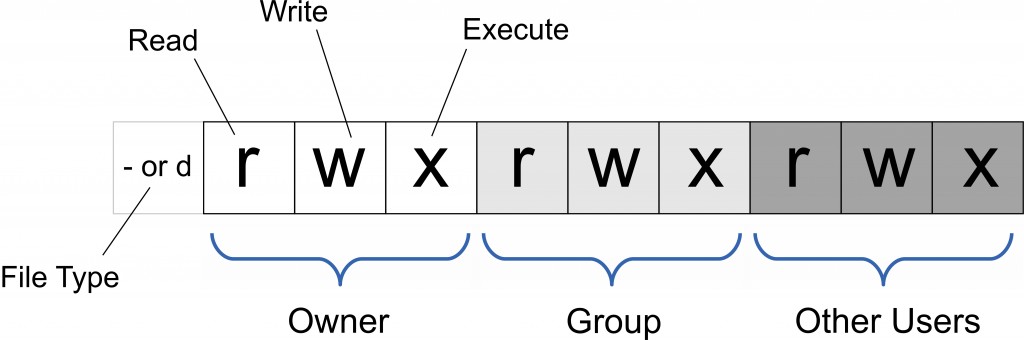
The permissions are broken into groups of threes, and each position in the group denotes specific permission, in this order: read (r), write (w), execute (x).
-
The first character (1) indicates whether the element is a directory (
d) or a file (-) For example,- rwx r-x r--represents that the element is a file (-). -
The next three characters (2-4) represent the permissions for the file's owner. For example,
- rwx r-x r--represents that the owner has read (r), write (w) and execute (x) permission. -
The second group of three characters (5-7) consists of the permissions for the group to which the file belongs. For example,
- rwx r-x r--represents that the group has read (r) and execute (x) permission, but no write permission. -
The last group of three characters (8-10) represents the permissions for everyone else. For example,
- rwx r-x r--represents that there is read (r) only permission.
To change file and directory permissions, we can use the command chmod
(which stands for "change mode"). The owner of a file can change the
permissions for user (u), group (g), or others (o) by
adding (+) or subtracting (-) the read (r), write (w),
and execute (e) permissions.
There are two basic ways of using chmod to change file permissions:
The symbolic method, and the absolute form. Here we will
introduce only the symbolic method as it is easier to understand. The
symbolic method allows us to specify permissions with a single-letter
abbreviations. A chmod command using this method consists of at least
three parts from the following lists:
| Access class | Operator | Type |
|---|---|---|
u (user) |
+ (add access) |
r (read) |
g (group) |
- (remove access) |
w (write) |
o (other) |
= (set exact access) |
x (execute) |
a (all: u, g, and o) |
For example, to add permission for everyone to read a file
example.bed in the directory named ~/unix_intro/exercises/genes, at
the Unix prompt, enter:
The a stands for "all", the + for "add", and the r for "read". If
you omit the access class, it's assumed to be all, so you could also
enter the previous example as:
You can also specify multiple classes and types with a single command. For example, to remove read and write permission for group and other users (leaving only yourself with read and write permission) on a file named myfile, you would enter:
You can also specify that different permissions be added and removed in
the same command. For example, to remove write permission and add
execute for all users on example.bed, you would enter:
In each of these examples, the access types that aren't specified are
unchanged. The previous command, for example, doesn't change any
existing settings specifying whether users besides yourself may have
read (r) access to example.bed You could also use the exact form to
explicitly state that group and other users' access is set only to read
with the =operator:
The chmod command also operates on directories. For example, to
remove write permission for other users on a subdirectory named
~/unix_intro/exercises/genes, you would enter:
To change permissions recursively in all subdirectories below the
specified directory, add the -R option; for example, to grant
execution permissions for other users to a directory
`~/unix_intro/exercises and all the subdirectories it contains, you
would enter:
Tip
Be careful when setting the permissions of directories, particularly
your home directory ~; you don't want to lock yourself out by removing
your own access!
For more info check man chmod or visit this
webpage.