Navigating Files and Directories
The part of the operating system responsible for managing files and directories is called the file system. It organizes our data into files, which hold information, and directories (also called "folders"), which hold files or other directories.
Let's have a look at how the file system as a whole is organized.
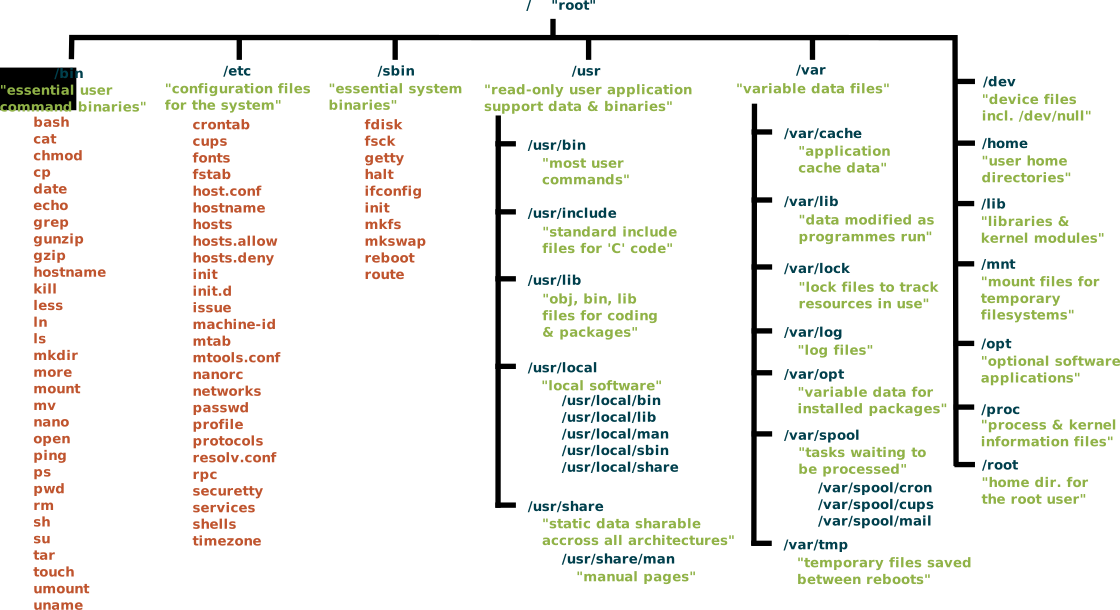
At the top is the root directory that holds everything else. We refer to it using a slash character / at the front of a file or directory name. However, most of the / characters appear inside a path, and they symbolize a separator.
Inside the root directory, there are several other directories: bin (which is where some built-in programs are stored), usr (where users' personal directories i.e. home directory are located), and so on.
Typically, when we open a new command prompt we will be in our home directory (also called a login directory). We refer to the home directory by character ~.
Directories are like rooms in a huge building (i.e. computers file system) - at any time while we are using the shell we are in exactly one room, called the current working directory. We refer to the current directory with a dot . and with two dots .. we refer to the parent directory. Most commands by default read and write files in the current working directory, so knowing where we are before running a command is very important!
Summary
/- root directory~- home directory.- current working directory..- parent directory
Locate yourself pwd
We can locate ourselves by running a command pwd (short for print working directory).
Question
What happens when you type pwd in your current directory?
List files and directories ls
We can see what's in our home directory by running ls, (short for list):
Question
What happens when you type ls in your current directory?
ls will print the names of the files and directories in the current directory. We can make its output more comprehensible by using the -F option (also known as a switch or a flag), which tells ls to classify the output by adding a marker to file and directory names to indicate what they are (directories will end with /, links with @, and executable with *). Depending on your default options, the shell might also use colors to differentiate files and directories:
Click to see the output
By convention, in Unix systems hidden files have a name beginning with a . The -a option of ls will shows all the files, including the hidden ones. Your home folder might contain several hidden configuration files (e.g. .bashrc, .conf, .cache). We can ignore them for the moment.
Question
Explore more ls options.
a) What does the command ls do when used with the -l option?
b) What about if you use both the -l and the -h option?
c) What about if you use both the -r and the -t option?
d) Which option can be passed to ls to sort files by size?
e) What does SYNOPSIS in man ls tells us?
f) How can we show the contents of a directory recursively with ls?
g) What does ls / ~ . do?
Changing Directories cd
The command cd allows us to change the current working directory to the desired directory specified in the commands argument.
Let's move from our home directory ~ to /opt/evop/public/BIOINFORMATICS/unix_intro/exercises. Now we can type ls to see what is in there.
Click to see the ouput
Now move to the parent directory and do ls:
Absolute vs Relative Paths
A path is a unique location to a file or a folder in a file system
of an OS. A path to a file is a combination of / and alpha-numeric
characters.
Absolute path
An absolute path is defined as the location of a file or directory
from the root directory (/). In other words, an absolute path
could be seen as a complete path from the start of the actual file
system from / directory.
Relative path
A relative path is defined as the location of a file or directory
from the present working directly (.). The relative path starts at
our current directory and never starts with a /.
Directories . and ..
UNIX offers a shortcut in the relative pathname that uses either the current or parent directory as a reference and specifies the path relative to it. A relative path-name uses one of these symbols:
.representing the current directory...representing the parent directory.
Search for files in a directory hierarchy find
We can use find command to find files and directories. It has a lot of
options, and here we will show how the simplest ones work.
For our first command, let's run find . from directory /opt/evop/public/BIOINFORMATICS/unix_intro/exercises.
cd /opt/evop/public/BIOINFORMATICS/unix_intro/exercises
find .
Click here to see the output
.
./1_browsing_textfiles.txt
./multiplefiles
./multiplefiles/file42.txt
./multiplefiles/file7.txt
./multiplefiles/file4.txt
./multiplefiles/file0.txt
./multiplefiles/file27.txt
./multiplefiles/file14.txt
./multiplefiles/file33.txt
./multiplefiles/file1.txt
./multiplefiles/file45.txt
./multiplefiles/file5.txt
./multiplefiles/file34.txt
./multiplefiles/file12.txt
./multiplefiles/file49.txt
./multiplefiles/file37.txt
./multiplefiles/file3.txt
./multiplefiles/file17.txt
./multiplefiles/file2.txt
./multiplefiles/file24.txt
./multiplefiles/file18.txt
./multiplefiles/file38.txt
./multiplefiles/file30.txt
./multiplefiles/file23.txt
./multiplefiles/file29.txt
./multiplefiles/file41.txt
./multiplefiles/file19.txt
./multiplefiles/file16.txt
./multiplefiles/file46.txt
./multiplefiles/file40.txt
./multiplefiles/file6.txt
./multiplefiles/file43.txt
./multiplefiles/file36.txt
./multiplefiles/file31.txt
./multiplefiles/file47.txt
./multiplefiles/file13.txt
./multiplefiles/file35.txt
./multiplefiles/file26.txt
./multiplefiles/file20.txt
./multiplefiles/file28.txt
./multiplefiles/file48.txt
./multiplefiles/file11.txt
./multiplefiles/file39.txt
./multiplefiles/file10.txt
./multiplefiles/file25.txt
./multiplefiles/file15.txt
./multiplefiles/file22.txt
./multiplefiles/file21.txt
./multiplefiles/file32.txt
./multiplefiles/file9.txt
./multiplefiles/file44.txt
./multiplefiles/file8.txt
./genes
./genes/mgat_genes.gb
./genes/chr9.gff
./genes/example.bed
./genes/sequences.fasta
./genes/chrX.gff
./genes/chr8.gff
./creatures
./creatures/minotaur.dat
./creatures/unicorn.dat
./creatures/basilisk.dat
./01_browsing_textfiles.txt
./2_searching_patterns.txt
As we explained before, the . as such means the current working
directory, which is where we want our search to start. find will
output names of every file and directory under the current working
directory. This can seem useless at first but find has many options to
filter the output and in the next couple of minutes, we will discover
some of them.
The first option in our list is -type d that means things that are
directories. find will output names of all directories in our
current working directory ~/unix_intro/exercises:
Notice that the objects find finds are not listed in any particular
order. If we change -type d to -type f, we get a listing of all the
files instead:
Click here to see the output
./1_browsing_textfiles.txt
./multiplefiles/file42.txt
./multiplefiles/file7.txt
./multiplefiles/file4.txt
./multiplefiles/file0.txt
./multiplefiles/file27.txt
./multiplefiles/file14.txt
./multiplefiles/file33.txt
./multiplefiles/file1.txt
./multiplefiles/file45.txt
./multiplefiles/file5.txt
./multiplefiles/file34.txt
./multiplefiles/file12.txt
./multiplefiles/file49.txt
./multiplefiles/file37.txt
./multiplefiles/file3.txt
./multiplefiles/file17.txt
./multiplefiles/file2.txt
./multiplefiles/file24.txt
./multiplefiles/file18.txt
./multiplefiles/file38.txt
./multiplefiles/file30.txt
./multiplefiles/file23.txt
./multiplefiles/file29.txt
./multiplefiles/file41.txt
./multiplefiles/file19.txt
./multiplefiles/file16.txt
./multiplefiles/file46.txt
./multiplefiles/file40.txt
./multiplefiles/file6.txt
./multiplefiles/file43.txt
./multiplefiles/file36.txt
./multiplefiles/file31.txt
./multiplefiles/file47.txt
./multiplefiles/file13.txt
./multiplefiles/file35.txt
./multiplefiles/file26.txt
./multiplefiles/file20.txt
./multiplefiles/file28.txt
./multiplefiles/file48.txt
./multiplefiles/file11.txt
./multiplefiles/file39.txt
./multiplefiles/file10.txt
./multiplefiles/file25.txt
./multiplefiles/file15.txt
./multiplefiles/file22.txt
./multiplefiles/file21.txt
./multiplefiles/file32.txt
./multiplefiles/file9.txt
./multiplefiles/file44.txt
./multiplefiles/file8.txt
./genes/mgat_genes.gb
./genes/chr9.gff
./genes/example.bed
./genes/sequences.fasta
./genes/chrX.gff
./genes/chr8.gff
./creatures/minotaur.dat
./creatures/unicorn.dat
./creatures/basilisk.dat
./01_browsing_textfiles.txt
./2_searching_patterns.txt
Now let's try matching by name:
Homework
How can you get the absolute path to a directory (e.g. exercises directory)?
Click to see the answer
Try finding the answer here