Starting UNIX terminal
Opening terminal
Windows
Unfortunately, Windows comes with Command prompt which is not of
interest for us. However, there are many possibilities for us who have
Windows OS to use Unix like terminal! Here are several options:
-
MobaXterm - free, easy to install toolbox for remote computing that provides a command-line interface.
-
Ubuntu on Windows 10 - free Windows10 app that provides Ubuntu terminal. Follow the instructions on how to install it here
-
Babun - free, easy to install. To use it, go to the
Start menu, selectPrograms, and click onBabun. -
Putty Manager - extends putty and provides multiple tabs and options.
-
Cygwin - emulates a whole Unix environment. You can execute commands on your computer, or connect to a remote server
Mac
The Mac command-line is a program called Terminal. It is located in
the /Applications/Utilities/ folder. To find it, go to your
Applications folder. Near the bottom, you should find a folder called
Utilities. Go inside, and one of the applications listed is called
Terminal. Double-click that application to open it.
Linux
To find it, click on Applications and search for Terminal or
Konsole.
Go ahead and open the command-line. When you open it you will see a new window, with a simple prompt which indicates that the shell is ready for the input.
Connecting to a remote server
We will do most of our exercises on the remote computers (physically
located outside of your homes :)) using the
evop-login.imp.fu-berlin.de server. We can access them through the
terminal (or terminal emulator) that you just (installed and) opened.
The login to the server is very straight forward for Linux and Mac, but
the Windows can be a bit tricky depending on the software you chose to
install at the beginning (from here on we assume you are using
MobaXterm or Ubuntu on Windows 10 app).
So, let's do it! First, we have to open the terminal as described before and then we have to type:
SSH (Secure SHell) is the ubiquitous tool for logging into and working on remote machines securely. All sensitive information is strongly encrypted, and in addition to the remote shell, SSH supports file transfer, and port forwarding for arbitrary protocols, allowing secure access to remote services.Two ssh options important for us are:
- -J which allows us to jump through a host (from host1 to host2, in our case from andorra to evop-login).
- -X which allows us to execute graphical applications remotely. Runing graphical applications remotely is very demanding for the network, so by default, we will NOT use this option during this tutorial.
In addition to the main ssh command, the SSH suite of programs includes tools such as:
scp- Secure Copy Program (which we will be using),sftp- Secure File Transfer Protocol, orssh-agentto help with key management.
Prompt
By default, your prompt will contain the username of the current user followed by a symbol @,
the host name followed by : and the current working directory, and it usually ends with the symbol $.
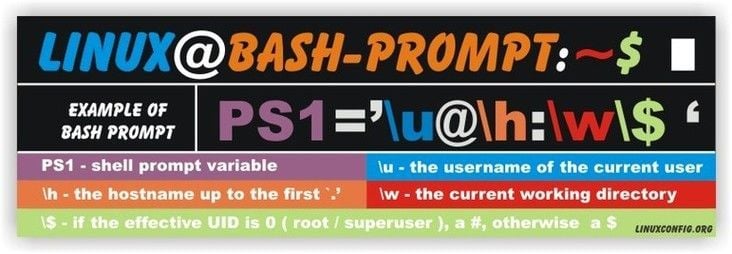
For those who are curious, you can customize your bash prompt by changing the color and information contained in it.
Tip
Sometimes you will find chunks of code online with prompt e.g.
Be sure that you remove it when you are typing or pasting the code into the terminal.
Syntax of a shell command
The general syntax of a shell command follows this logic:
Verb Options Arguments
- Verb is the name of a command
- Options are command modifiers proceeded
by
+or- - Arguments give more information to the command such as the exact location of the input file, or the exact location where the output file should be saved. Sometimes options and arguments are referred to as parameters. A command can be called with more than one option and more than one argument: but a command doesn't always require an argument or an option.
So by typing: ls -l /
we are calling command ls with an option -l and an argument /. Each part is separated by spaces: if you omit the space between ls and -l the shell will look for a command called ls-l, which doesn't exist. Also, capitalization is important. For example, ls -s will display the size of files and directories alongside the names, while ls -S will sort the files and directories by size, while LS -S will produce an error.
ls -l ~
The command above will give us a long listing -l of files and directories in our home directory ~.
Command options
Command options either start with a single dash -
(single-character options) or two dashes -- (long options), and they
are changing the behavior of a command. Single-character options use a
space as a separator from their parameter, while the long options use
"=" (e.g. single-character option: -0 value; long option:
--option=value). We can combine single-character options like this:
ls -ltr where -ltr are 3 different options -l, -t, and -r.
Some commands have a lot of options, such as ls, and thus it can be
tricky finding the right option.
Command arguments
Arguments tell the command what to operate on (e.g. files and directories). In other words, we can define an argument as the input given to a command, which can be in the form of a file or directory (which also can be set as a path).
By default, most of the commands would perform the action in the
current directory (also referred to as .). For example, if we type
only ls, it gives us a list of files and directories in our current
directory, thus there is no difference in ls and ls ..
To see the contents of another directory, we have to add its name or its path as the command argument:
Click to see the output
total 60
-rwxr-xr-x 1 k00354837 bcp_evopchairs  2642 Apr 19 15:17 01_browsing_textfiles.txt
-rwxr-xr-x 1 k00354837 bcp_evopchairs  2642 Apr 19 15:17 1_browsing_textfiles.txt
-rwxr-xr-x 1 k00354837 bcp_evopchairs 37663 Apr 19 15:17 2_searching_patterns.txt
drwxr-xr-x 2 k00354837 bcp_evopchairs  4096 Apr 19 15:17 creatures
drwxr-xr-x 2 k00354837 bcp_evopchairs  4096 Apr 19 15:17 genes
drwxr-xr-x 2 k00354837 bcp_evopchairs  4096 Apr 19 15:17 multiplefiles
Tip
Let the Tab key do its magic with auto-completion! We can use the Tab key on the keyboard to automatically complete a command, directory, or file name.
Task
Try the following:
a) Type ls /o and then press the Tab, add e then press the Tab, add p then press the Tab, add B then press the Tab, add u then press the Tab, , add e then press the Tab and then press Enter
b) Now type he and then press the Tab twice. You will get the list of commands beginning with "he".
Getting help
Often we would need to find out how to use a command and what options it accepts. We can do that in several ways:
Help option --help
We can pass a --help option to the command, such as:
Click here to see the output
Usage: ls [OPTION]... [FILE]...
List information about the FILEs (the current directory by default).
Sort entries alphabetically if none of -cftuvSUX nor --sort is specified.

Mandatory arguments to long options are mandatory for short options too.
-a, --all                  do not ignore entries starting with .
-A, --almost-all           do not list implied . and ..
    --author               with -l, print the author of each file
-b, --escape               print C-style escapes for nongraphic characters
    --block-size=SIZE      with -l, scale sizes by SIZE when printing them;
                            e.g., '--block-size=M'; see SIZE format below
-B, --ignore-backups       do not list implied entries ending with ~
-c                         with -lt: sort by, and show, ctime (time of last
                            modification of file status information);
                            with -l: show ctime and sort by name;
                            otherwise: sort by ctime, newest first
-C                         list entries by columns
    --color[=WHEN]         colorize the output; WHEN can be 'always' (default
                            if omitted), 'auto', or 'never'; more info below
-d, --directory            list directories themselves, not their contents
-D, --dired                generate output designed for Emacs' dired mode
-f                         do not sort, enable -aU, disable -ls --color
-F, --classify             append indicator (one of */=>@|) to entries
    --file-type            likewise, except do not append '*'
    --format=WORD          across -x, commas -m, horizontal -x, long -l,
                            single-column -1, verbose -l, vertical -C
    --full-time            like -l --time-style=full-iso
-g                         like -l, but do not list owner
    --group-directories-first
                            group directories before files;
                            can be augmented with a --sort option, but any
                            use of --sort=none (-U) disables grouping
-G, --no-group             in a long listing, don't print group names
-h, --human-readable       with -l and -s, print sizes like 1K 234M 2G etc.
    --si                   likewise, but use powers of 1000 not 1024
-H, --dereference-command-line
                            follow symbolic links listed on the command line
    --dereference-command-line-symlink-to-dir
                            follow each command line symbolic link
                            that points to a directory
    --hide=PATTERN         do not list implied entries matching shell PATTERN
                            (overridden by -a or -A)
    --hyperlink[=WHEN]     hyperlink file names; WHEN can be 'always'
                            (default if omitted), 'auto', or 'never'
    --indicator-style=WORD  append indicator with style WORD to entry names:
                            none (default), slash (-p),
                            file-type (--file-type), classify (-F)
-i, --inode                print the index number of each file
-I, --ignore=PATTERN       do not list implied entries matching shell PATTERN
-k, --kibibytes            default to 1024-byte blocks for disk usage;
                            used only with -s and per directory totals
-l                         use a long listing format
-L, --dereference          when showing file information for a symbolic
                            link, show information for the file the link
                            references rather than for the link itself
-m                         fill width with a comma separated list of entries
-n, --numeric-uid-gid      like -l, but list numeric user and group IDs
-N, --literal              print entry names without quoting
-o                         like -l, but do not list group information
-p, --indicator-style=slash
                            append / indicator to directories
-q, --hide-control-chars   print ? instead of nongraphic characters
    --show-control-chars   show nongraphic characters as-is (the default,
                            unless program is 'ls' and output is a terminal)
-Q, --quote-name           enclose entry names in double quotes
    --quoting-style=WORD   use quoting style WORD for entry names:
                            literal, locale, shell, shell-always,
                            shell-escape, shell-escape-always, c, escape
                            (overrides QUOTING_STYLE environment variable)
-r, --reverse              reverse order while sorting
-R, --recursive            list subdirectories recursively
-s, --size                 print the allocated size of each file, in blocks
-S                         sort by file size, largest first
    --sort=WORD            sort by WORD instead of name: none (-U), size (-S),
                            time (-t), version (-v), extension (-X)
    --time=WORD            with -l, show time as WORD instead of default
                            modification time: atime or access or use (-u);
                            ctime or status (-c); also use specified time
                            as sort key if --sort=time (newest first)
    --time-style=TIME_STYLE  time/date format with -l; see TIME_STYLE below
-t                         sort by modification time, newest first
-T, --tabsize=COLS         assume tab stops at each COLS instead of 8
-u                         with -lt: sort by, and show, access time;
                            with -l: show access time and sort by name;
                            otherwise: sort by access time, newest first
-U                         do not sort; list entries in directory order
-v                         natural sort of (version) numbers within text
-w, --width=COLS           set output width to COLS.  0 means no limit
-x                         list entries by lines instead of by columns
-X                         sort alphabetically by entry extension
-Z, --context              print any security context of each file
-1                         list one file per line.  Avoid '\n' with -q or -b
    --help     display this help and exit
    --version  output version information and exit

The SIZE argument is an integer and optional unit (example: 10K is 10*1024).
Units are K,M,G,T,P,E,Z,Y (powers of 1024) or KB,MB,... (powers of 1000).

The TIME_STYLE argument can be full-iso, long-iso, iso, locale, or +FORMAT.
FORMAT is interpreted like in date(1).  If FORMAT is FORMAT1<newline>FORMAT2,
then FORMAT1 applies to non-recent files and FORMAT2 to recent files.
TIME_STYLE prefixed with 'posix-' takes effect only outside the POSIX locale.
Also the TIME_STYLE environment variable sets the default style to use.

Using color to distinguish file types is disabled both by default and
with --color=never.  With --color=auto, ls emits color codes only when
standard output is connected to a terminal.  The LS_COLORS environment
variable can change the settings.  Use the dircolors command to set it.

Exit status:
0  if OK,
1  if minor problems (e.g., cannot access subdirectory),
2  if serious trouble (e.g., cannot access command-line argument).

GNU coreutils online help: <https://www.gnu.org/software/coreutils/>
Report ls translation bugs to <https://translationproject.org/team/>
Full documentation at: <https://www.gnu.org/software/coreutils/ls>
or available locally via: info '(coreutils) ls invocation'
Task
Search for help for command cp and find out what for we use option -r
Manuals man
We can read its manual with man, such as:
man ls
Click here to see first couple of lines of the output
LS(1)                                  User Commands                                  LS(1)

NAME
    ls - list directory contents

SYNOPSIS
    ls [OPTION]... [FILE]...

DESCRIPTION
    List  information  about the FILEs (the current directory by default).  Sort entries
    alphabetically if none of -cftuvSUX nor --sort is specified.

    Mandatory arguments to long options are mandatory for short options too.

Manual page ls(1) line 1 (press h for help or q to quit)
man will turn your terminal into a page with a description of the ls
command and its options and, if you're lucky, some examples of how to
use it.
To navigate through the man pages, you may use ↑ and ↓ to move
line-by-line, or try B and Space to skip up and down by a full page.
To search for a character or word in the man pages, use / followed
by the character or word you are searching for. Sometimes a search will
result in multiple hits. If so, you can move between hits using N (for
moving to the next instance) and Shift+N (for moving backward).
To quit the man pages, press q.
Task
Find in the manual of grep what we can do with option -v
Google it!
And finally, the most important way to find help for commands is searching it on the internet! Google it!

Task
Goole "How do you list only files not directories in Linux?"